
Introducing Dark Mode for a Better Learning Experience

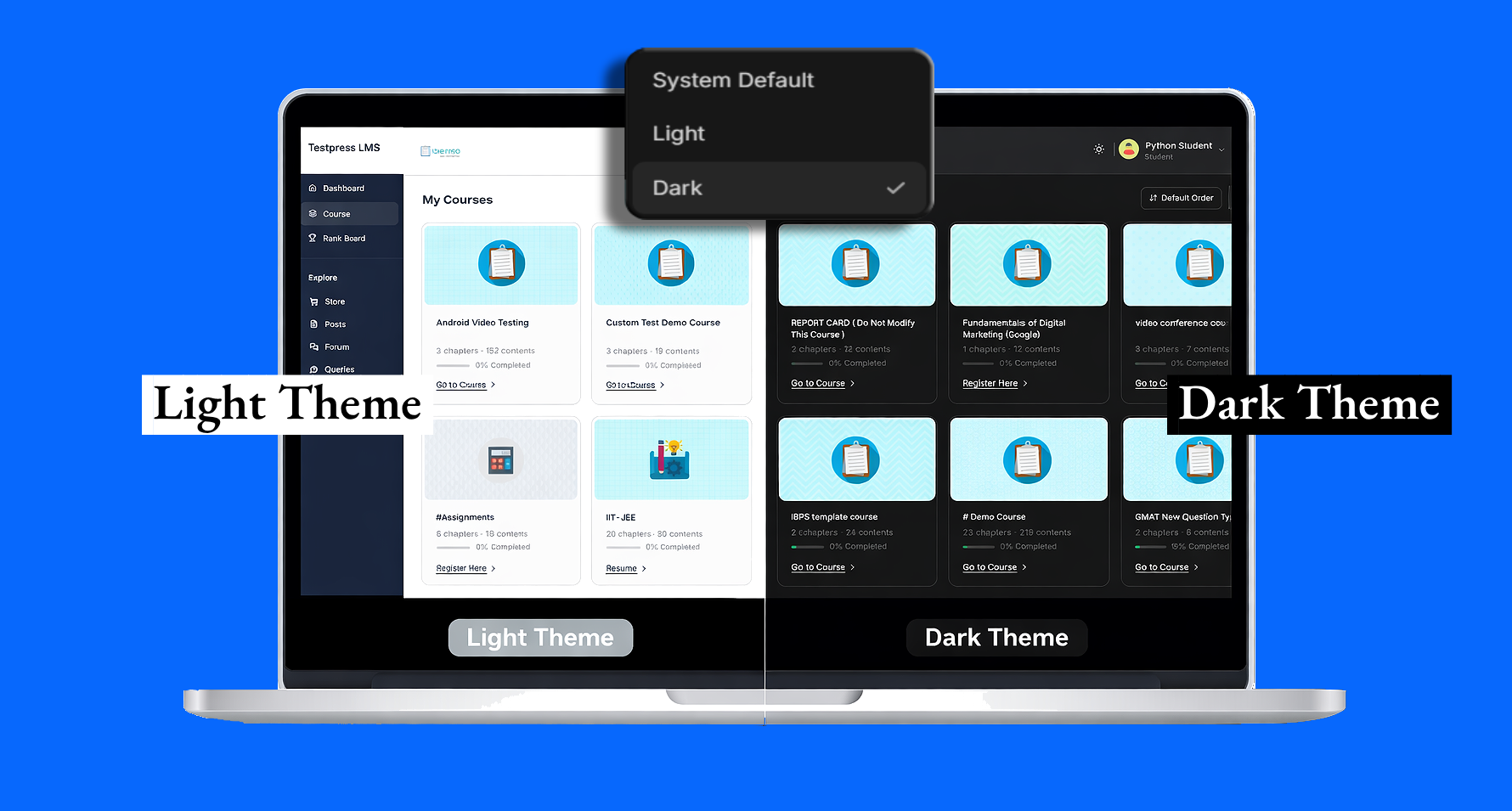
Students using the LMS can now switch to Dark Mode directly from the dropdown menu on any page in the student portal. This allows them to study comfortably during late-night sessions with reduced eye strain and a more modern interface.
You’re reviewing student activity late in the evening
Some of your students are watching recorded lectures
Others are revising PDFs before tomorrow’s test
Now:
Most of that studying is happening after dinner. Sometimes even after midnight.
But the platform interface is still bright.
Students reduce screen brightness.
Some switch to night filters on their devices.
You might be wondering:
“Can students switch the platform to dark mode?”
That’s exactly what this update addresses.
Dark Mode is now available in the student portal.
Students can switch between Light, Dark, or System Default themes directly from the dropdown menu available on every page.
What’s New: Dark Mode in the Student Portal
Students can now change the platform theme without navigating to settings.
A theme toggle is available in the dropdown menu across all pages of the student portal, making it quick and accessible anytime.
Students can choose between:
- Light Mode – the default bright interface
- Dark Mode – a darker interface optimized for low-light environments
- System Default – the platform follows the device theme automatically
Once selected, the theme applies instantly across the entire student experience, including:
- Lecture pages
- Video player controls
- PDFs and reading materials
- Navigation menus
- Notifications and modals
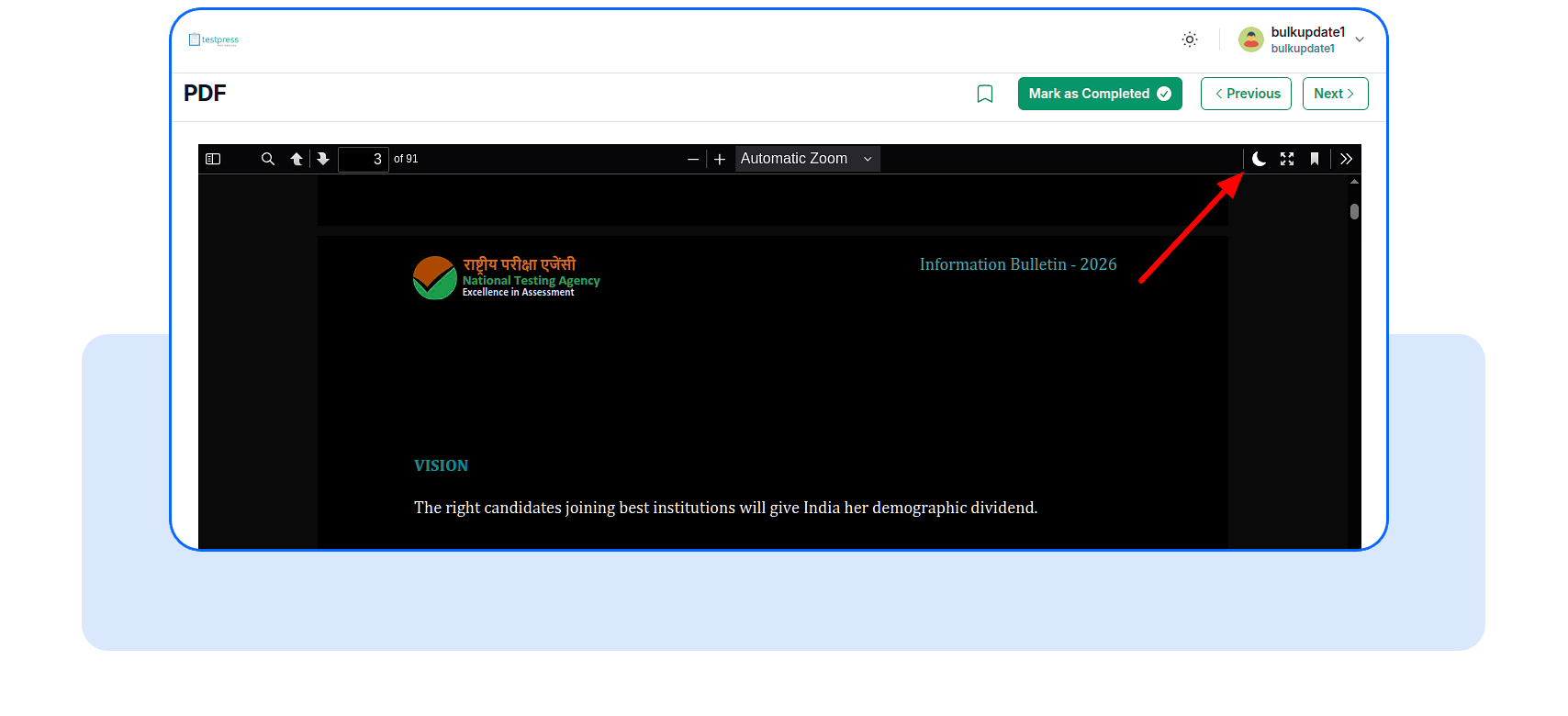
Learners can switch a PDF back to light mode independently using the toggle inside the PDF viewer.
Why This Matters
Students preparing for competitive exams often study late into the night.
A bright interface during long study sessions can lead to fatigue and eye strain. Dark Mode helps create a more comfortable learning environment.
For institutes, that translates into measurable benefits:
- Students can review lectures and materials for longer periods
- A modern interface improves overall platform satisfaction
- Comfortable UI encourages students to spend more time learning
- Meets modern expectations as most learning tools now support dark mode
How Students Enable Dark Mode?
Students can switch themes in just a few clicks.
- Open the student portal.
- Click the dropdown menu available on the page header.
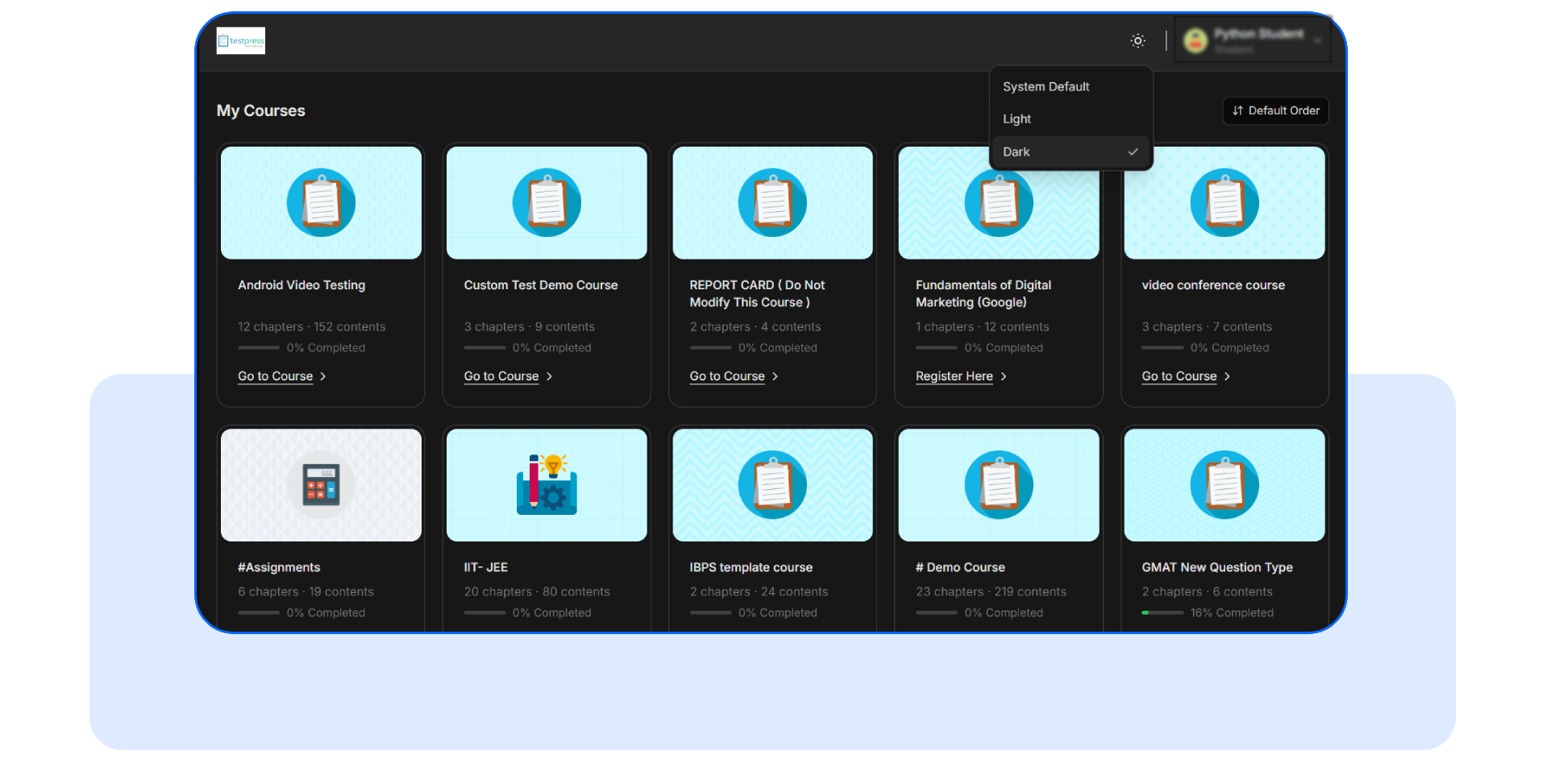
- Select the Theme option.
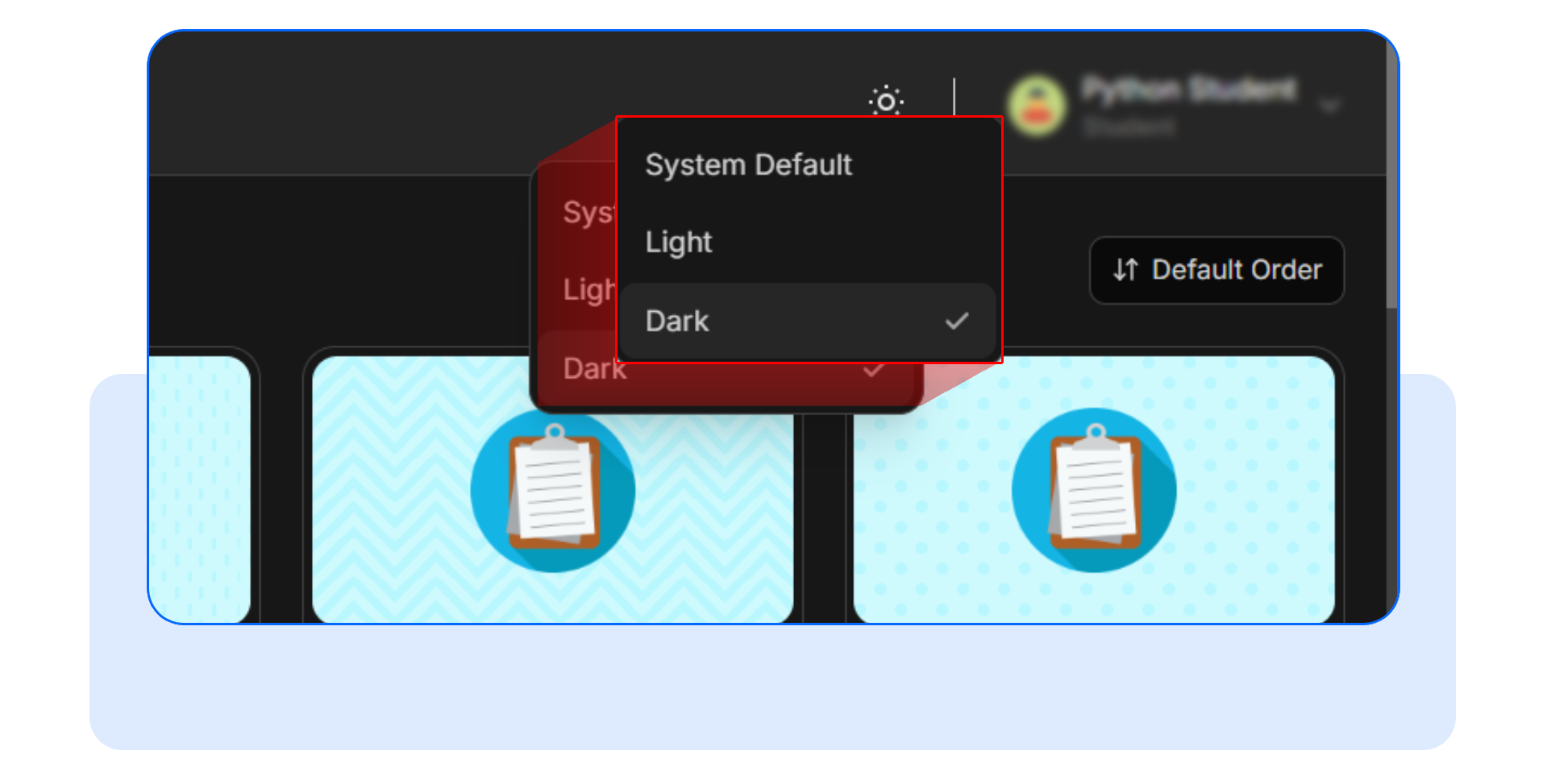
4.Choose one of the available options:
- Light
- Dark
- System Default
The platform updates instantly without reloading the page.
Because the toggle is available on every page, students can switch themes whenever they want without leaving their current screen.
If Dark Mode is enabled, PDFs will open in dark mode by default. Students can still switch a PDF to dark mode individually using the toggle inside the PDF viewer, without changing the overall platform theme.
Frequently Asked Questions
Is Dark Mode available for instructors?
Currently, Dark Mode is available in the student portal only.
Where can students find the theme toggle?
The theme selector is available in the dropdown menu present on every page of the student portal.
Will the platform remember the student’s theme preference?
Yes. The selected theme is saved in the browser and applied automatically on future visits.
Students often study during the hours when bright screens feel the most uncomfortable.
A simple feature like Dark Mode can make those sessions significantly easier.
Encourage your students to try Dark Mode from the dropdown menu in the student portal and make late-night studying more comfortable.
Have questions? Our team’s here to help - reach out to support.