
Testpress Messages: One Simple Conversation Between Students and Institutes

Testpress Messages gives every student one persistent, one-to-one conversation with their institute. Students can ask questions without choosing a category or starting another thread, while authorized staff can respond from one shared conversation with the full history intact.
A simpler way for students to reach your institute
A student needs help with something important.
But before they can even ask the question, they have to figure out where to ask it.
Is it a support question? A course question? Something else?
For students, that uncertainty creates friction. For your institute, it can mean questions going to the wrong place, delayed responses, and a support experience that feels more complicated than it should.
The simpler approach?
Give students one place where they can reach your institute whenever they need help.
That’s what Testpress Messages does. Every student gets a persistent, one-to-one conversation with your institute.
Instead of choosing between channels or starting a new conversation each time, students can open Chat, send a message, and return to the same conversation whenever they need help.
For your team, the conversation stays in one place, so staff have the context they need to respond without starting from scratch.
What’s New: Persistent Student-Institute Messaging
Testpress Messages creates one continuous conversation between each student and their institute.
That conversation stays available over time. Previous messages remain visible, so students and staff can pick up where they left off instead of repeating the same information.
Students can:
- Send text messages directly to their institute
- Ask about any matter without selecting a course, product, category, or query type
- See their previous messages and replies in one place
- Continue the same conversation whenever they return
- Receive clear indications when new messages are available
Authorized institute staff can:
- View student conversations they have permission to access
- See the available conversation history
- Reply directly within the same conversation
- See which staff member sent each response
- Participate in the same conversation alongside other authorized staff
- Identify unread conversations and students waiting for a response
There’s also a configurable welcome message. Institutes can set the message students see when their conversation is initialized, giving the interaction a clear starting point.
Why It Matters: Less Fragmentation, More Context
When communication is spread across different threads and channels, context gets lost.
A student may have to explain the same issue more than once. A staff member may not know what another person already told the student. A message can sit unnoticed while everyone assumes someone else has handled it.
Testpress Messages brings that communication into one persistent thread.
The result:
- One conversation instead of multiple disconnected threads
- One complete history instead of scattered context
- One place for students to ask questions without figuring out where they belong
- Shared visibility for authorized staff
- Clear unread states so new messages are easier to notice
- Better continuity when multiple staff members participate
The staff experience is designed to make the next action clear. Staff can see the latest conversation activity, identify unread messages, and determine which students are waiting for a response.
The goal is simple: make it easier for students to reach their institute and easier for institutes to keep the conversation going.
How It Works
How Students Can Use Testpress Messages
Getting in touch with your institute takes just a few steps.
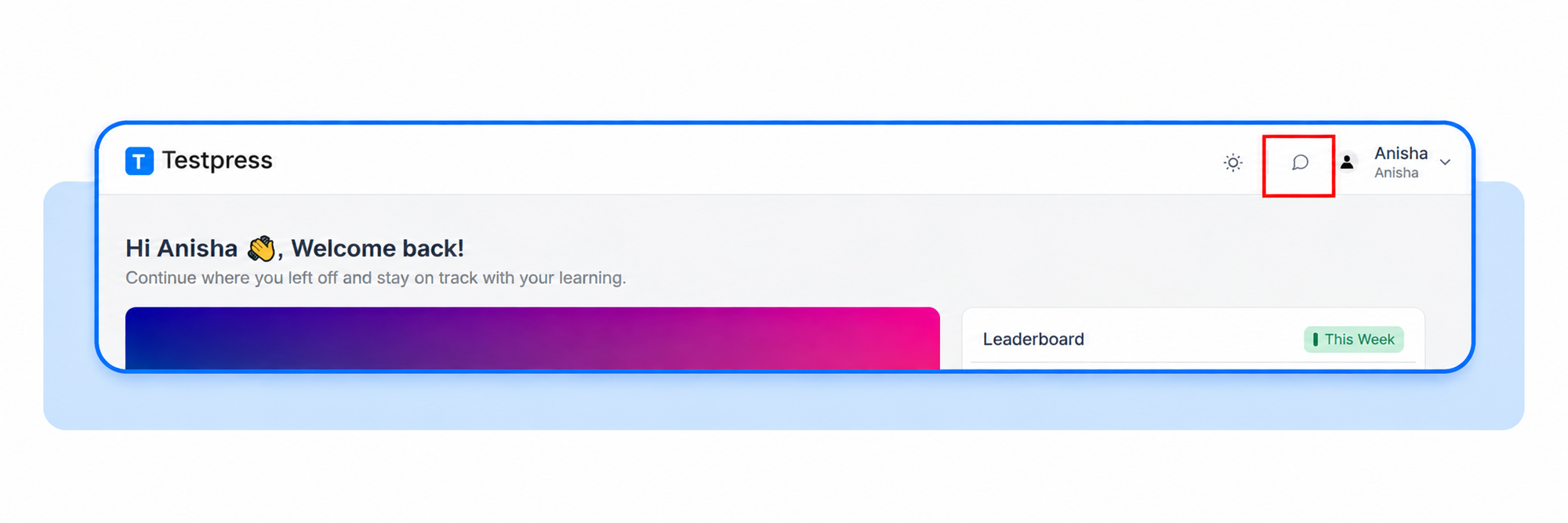
1. Open Messages
Click the Messages icon in the page header. The icon is available across all pages in Testpress, so you can open your conversation wherever you are.
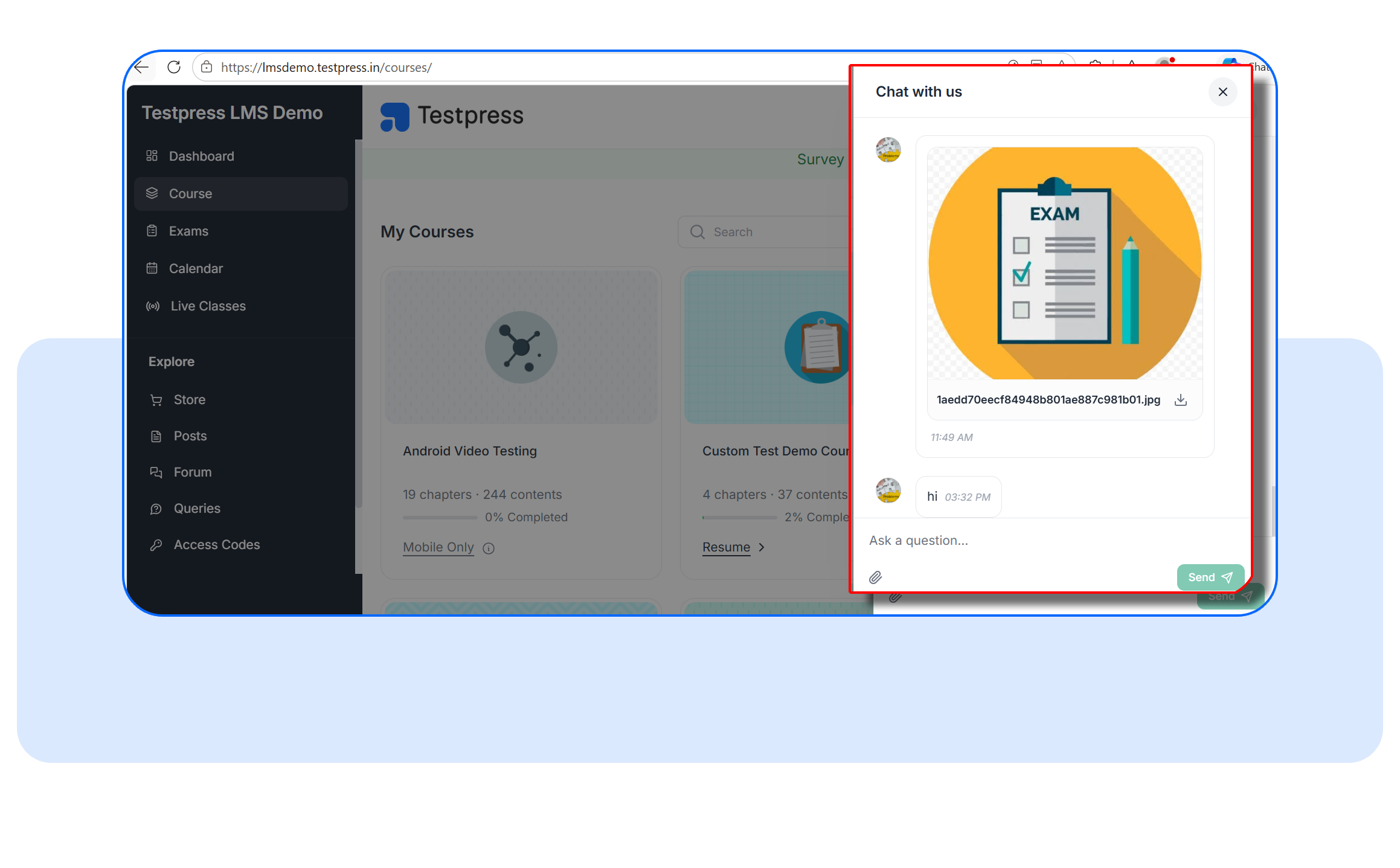
2. View Your Conversation
Your existing conversation with the institute appears in the chat drawer.
If you're a new student, you'll also see the welcome message from your institute when the conversation begins.
Previous messages stay in the same conversation, so you can quickly see what has already been discussed.
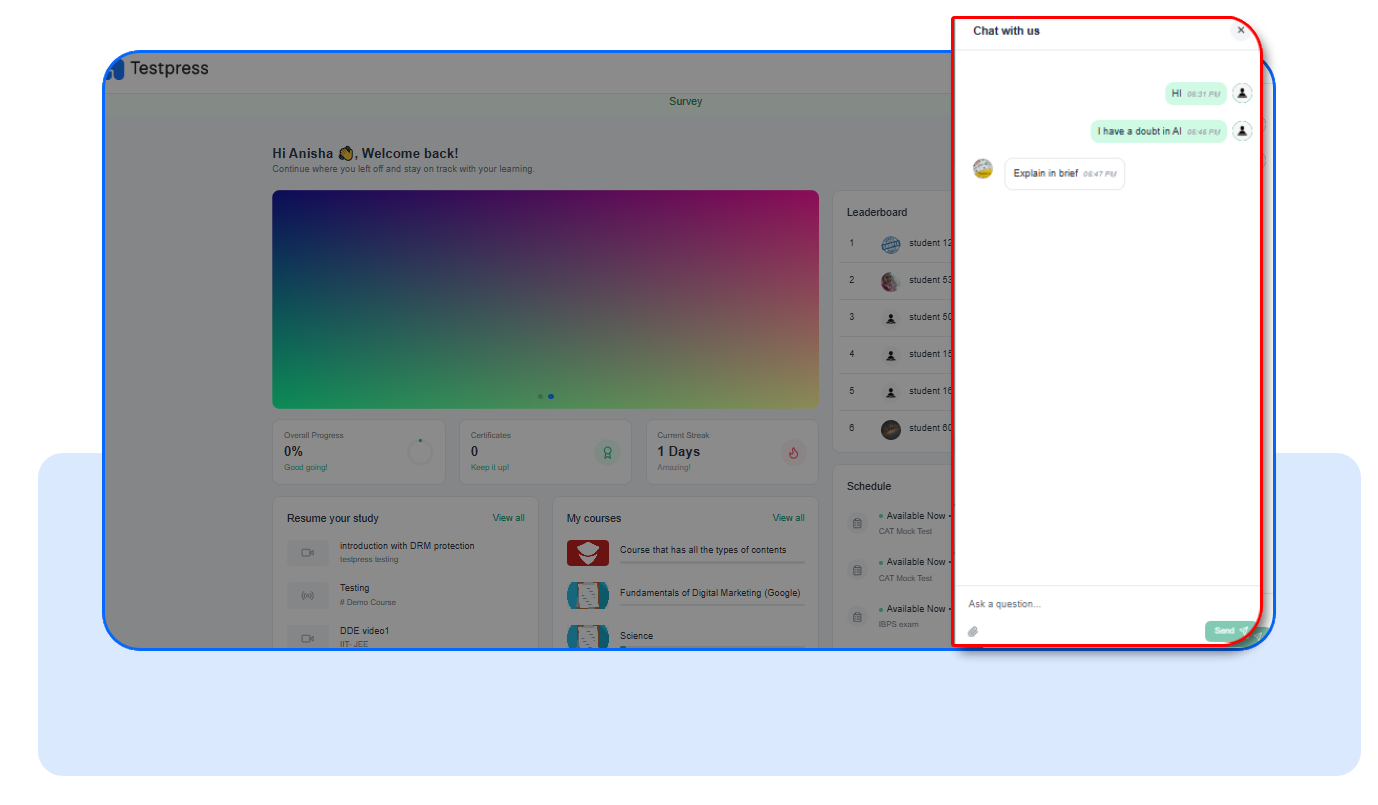
3. Send Your Message
Type your question or message directly into the chat and send it.
You can use Messages for a course doubt, product question, support request, or any other question you want to raise with your institute.
There's no need to choose a support category or create a separate conversation.
4. View Staff Replies
When authorized institute staff respond, their reply appears in the same conversation.
New replies remain available even if you weren't using Testpress when they were sent. Where supported, you may also receive a notification when a new institute message arrives.
5. Continue the Conversation Anytime
Need to follow up later?
Simply open Messages again.
Your previous conversation remains available, so you can continue from where you left off without starting a new chat or repeating the context.
On the admin side, your team can view student conversations and respond directly from Testpress, making it easier to keep student communication in one place.
Built for Students and Staff
Messages is designed around two simple experiences.
For students, the experience is intentionally lightweight. The responsive chat interface works across desktop and mobile-sized web views and is suitable for supported mobile WebViews.
For staff, Messages provides a shared place to manage student conversations while respecting institute permissions.
Administrators control who can access Messages and can configure the default welcome message.
When staff access is revoked, that staff member can no longer view or send student messages.
FAQs
Can a student create multiple conversations with the same institute?
No. Each student has one persistent conversation with their institute. Returning to Chat opens the existing conversation rather than creating another thread.
Can multiple staff members respond?
Yes. Multiple authorized staff members can participate in the same student conversation. Each staff response identifies the staff member who sent it.
What happens if a student isn't online when a staff member replies?
The message remains stored in the conversation and is available when the student returns. Where supported, application notification mechanisms can also surface new messages.
Testpress Messages is now the place to start when a student simply needs to talk to their institute. Open Chat, send a message, and keep the conversation going from there.
Have questions? Our team’s here to help - reach out to support.