
Introducing Batch Change Approval Workflow in Testpress

Testpress’s new Batch Change Approval Workflow adds a maker-checker process to manual access changes, so staff can request batch, course, content, subscription, and expiry changes while authorised staff review them before anything takes effect. It gives management a clear audit trail of who requested, who approved or rejected, what changed, and when.
You manage an institute where staff handle student access every day.
A student makes a payment. A staff member changes their batch. Someone updates a subscription. Another person extends an expiry date.
Most of these changes seem routine.
But here’s where it gets tricky:
These manual changes can happen without management review.
A student could get access to the wrong course. A subscription could be changed without approval. A batch could be updated without anyone else knowing.
And when something goes wrong, the obvious question is: Who made the change, and why?
That’s where the new Batch Change Approval Workflow comes in.
Instead of changing access directly, staff can submit a request with a reason. An authorised checker reviews it before the change takes effect.
One person requests. Another approves. Every decision is recorded.
What’s New
The Batch Change Approval Workflow introduces a simple maker-checker process for manual, batch-based access changes.
A staff member with maker permission submits a request explaining what needs to change and why. A staff member with checker permission, or an institute superadmin, reviews the request and approves or rejects it.
Until approval, student access stays exactly as it is.
The workflow covers:
- Student batch changes: Add, remove, or replace batches on a member profile.
- Bulk batch changes: Turn bulk updates into individual approval requests for each affected student.
- Course batch access: Request changes to the batches that can access a course.
- Content batch restrictions: Review changes to batch-level content access.
- User Subscriptions: Request manual subscription creation, updates, deletion, or expiry changes.
- Access expiry changes: Require approval for manual changes that affect access duration.
- Bulk approvals and rejections: Process multiple pending requests without reviewing them one at a time.
- Request history: Keep a record of the requester, reviewer, notes, timestamps, proposed changes, and final status.
There’s also an important distinction.
Automated trusted access flows continue to work without approval. ERP/API access, order completion, offers, scheduled tasks, and automated subscription expiry or removal are not interrupted by the workflow.
Why It Matters
Access control is only useful when you can trust how changes are being made.
The new workflow helps institutes put a review step between a manual request and an actual access change.
That means:
- Prevent unauthorised access: Manual batch changes don't take effect just because someone has access to an admin screen.
- Reduce incorrect course access: Review proposed batch-to-course mappings before students receive access.
- Create accountability: Every request records who submitted it, who approved or rejected it, and when.
- Protect higher-value content: Reduce the risk of students being manually moved into batches linked to content they haven't been authorised to access.
- Keep bulk operations controlled: A bulk upload can generate individual requests instead of silently changing access for dozens or hundreds of students.
- Give managers visibility: Completed requests remain in history, including rejection and cancellation details.
The key change is simple: request first, access second.
And when a legitimate request does need to move quickly, the institute superadmin can still use the direct-edit bypass.
How It Works
The workflow is simple: a maker requests the change, a checker reviews it, and the change only happens after approval.
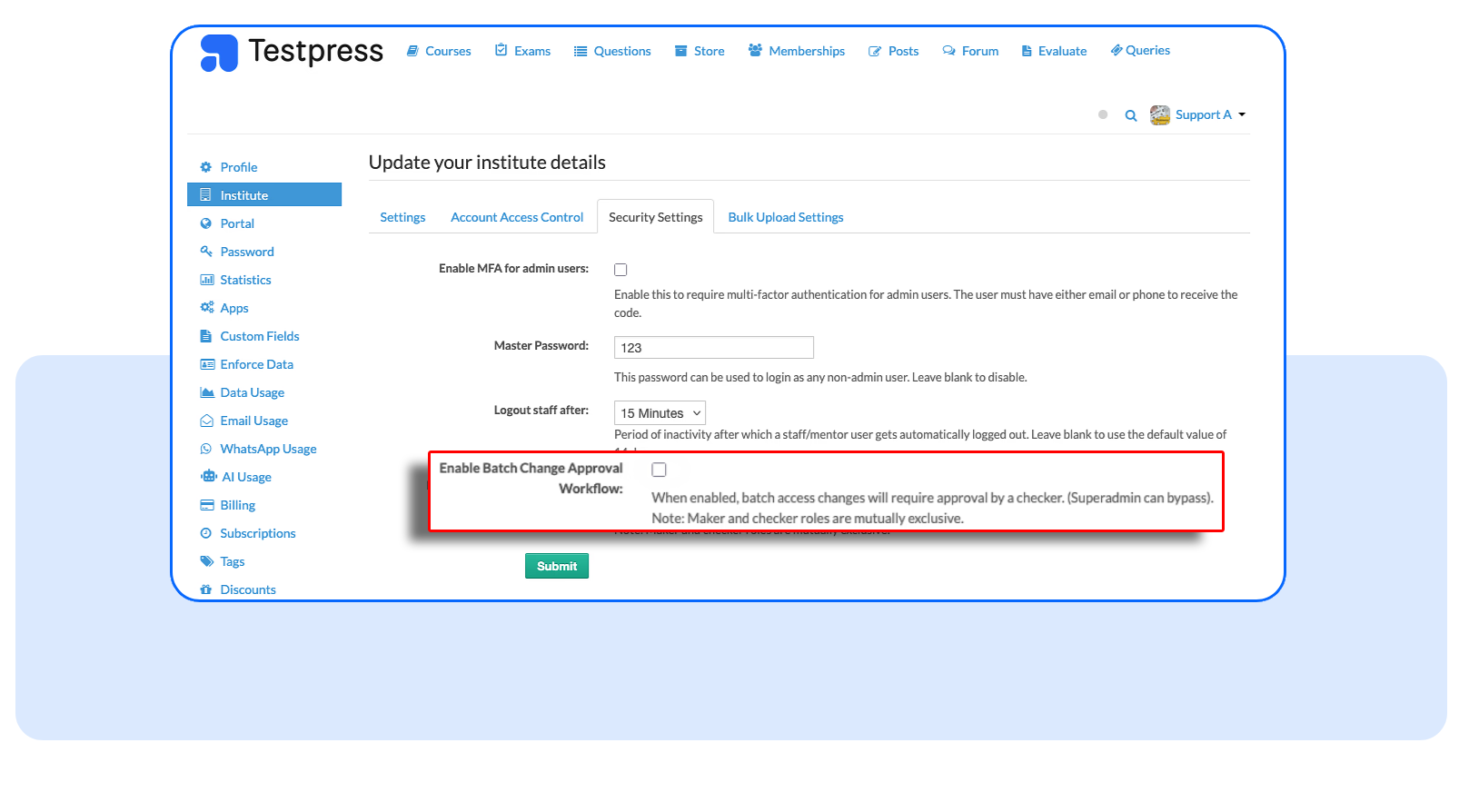
1. Enable the feature
A super admin goes to Settings → Institute → Security Settings, turns on Enable Batch Change Approval, and save the setting.
2. Assign Maker and Checker roles.
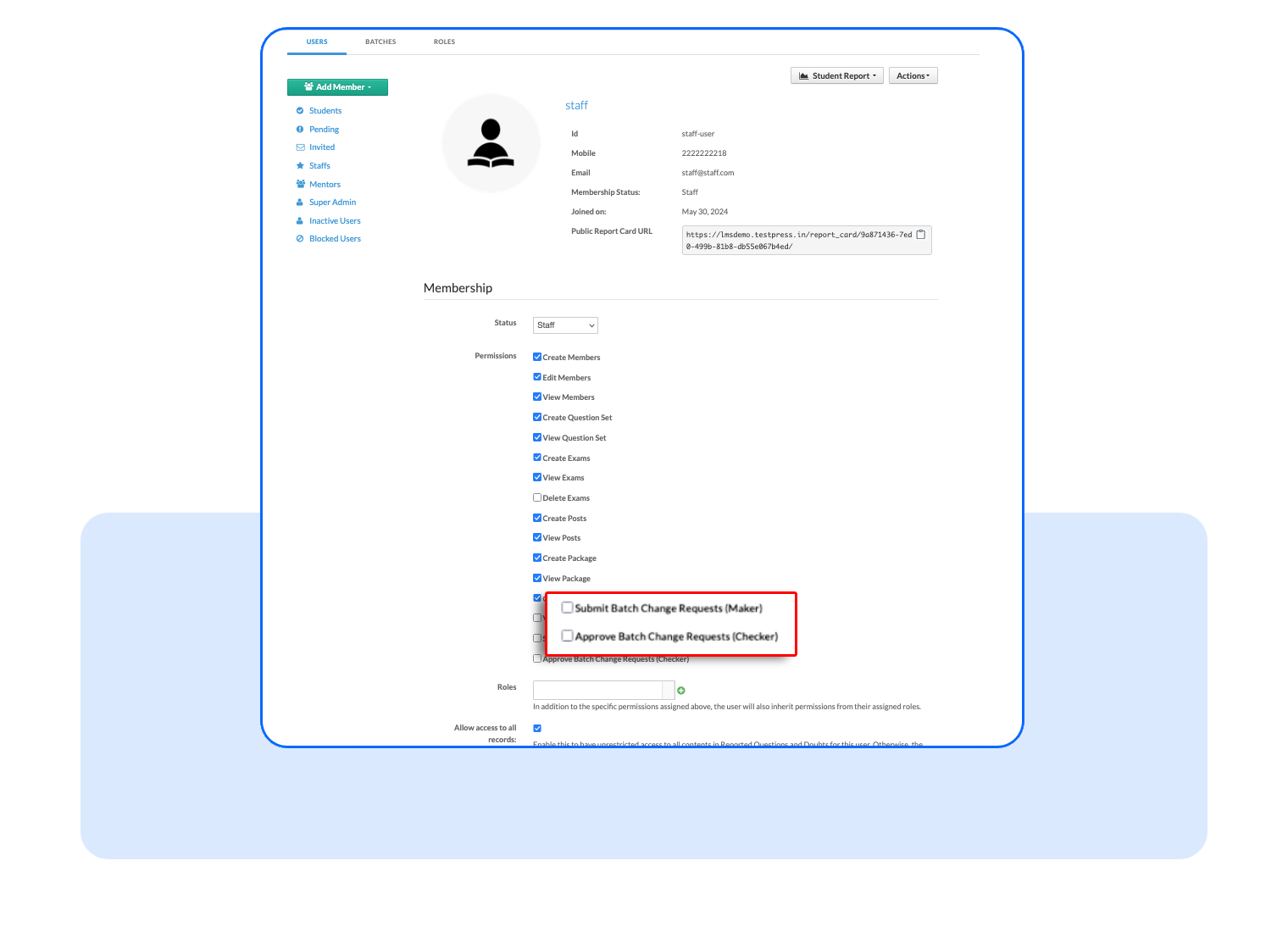
Go to Staff Management → Permissions and assign:
- Maker: Can submit batch change requests.
- Checker: Can approve or reject requests.
A staff member can have only one role. You can also limit permissions to specific courses.
3. Submit a request - for Makers
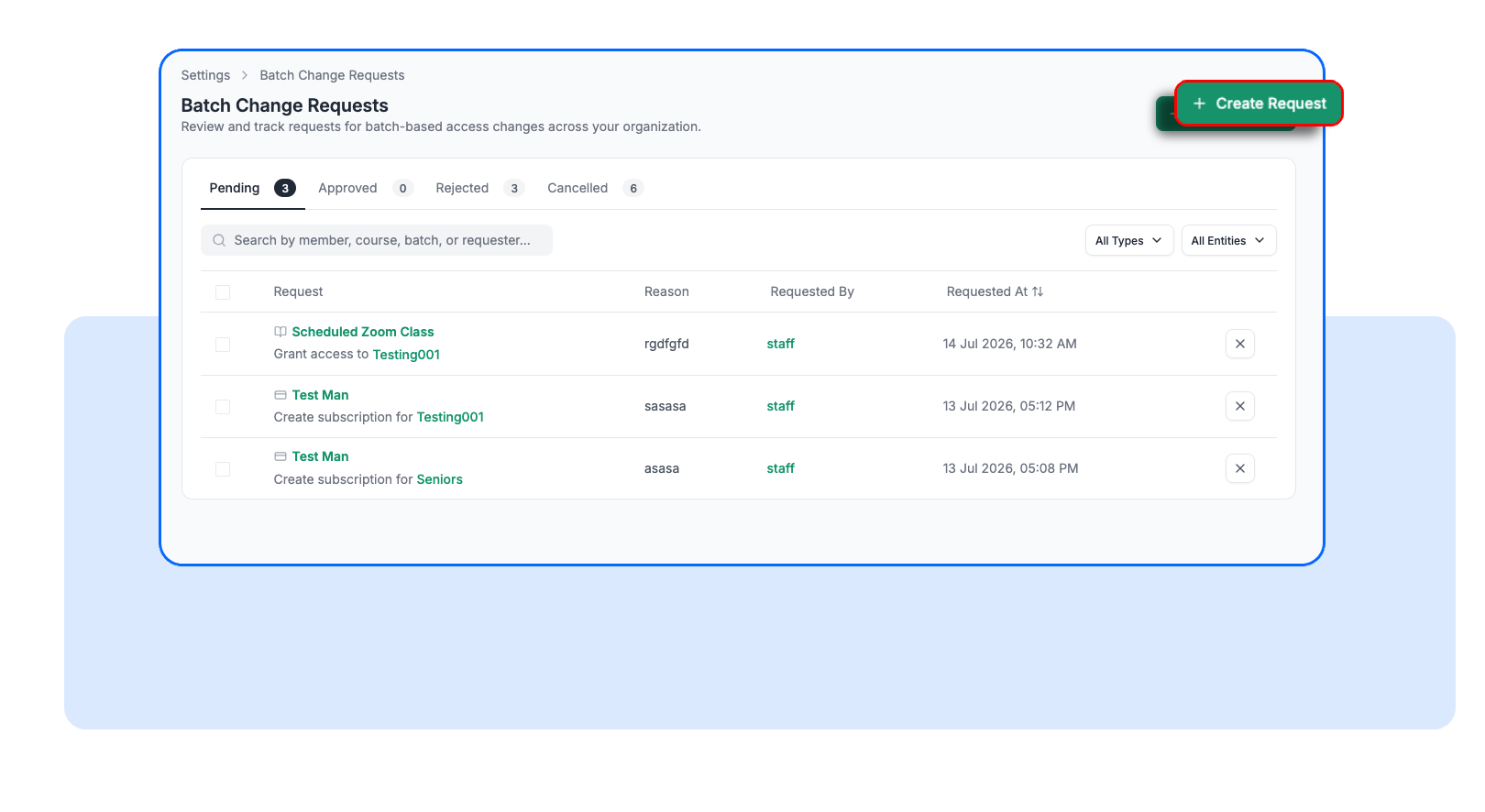
Makers go to Memberships → Batch Management → Change Requests and click Create Request.
4. Review and approve - for checkers
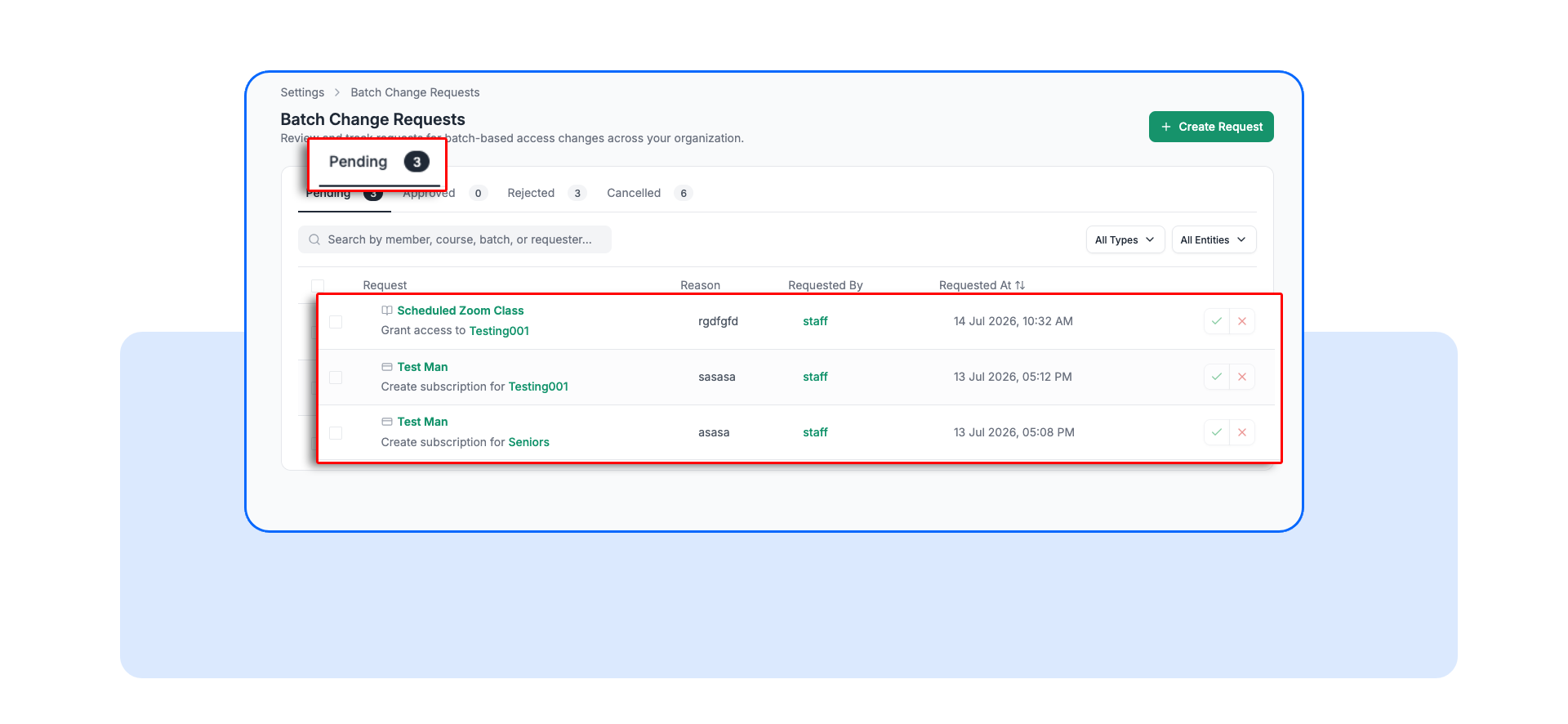
Checkers go to Admin → Batch Requests and review pending requests.
They can see who requested the change, what will change, why it was requested, and when it was submitted.
They can then Approve or Reject the request. Rejection requires a reason.
A maker cannot approve their own request.
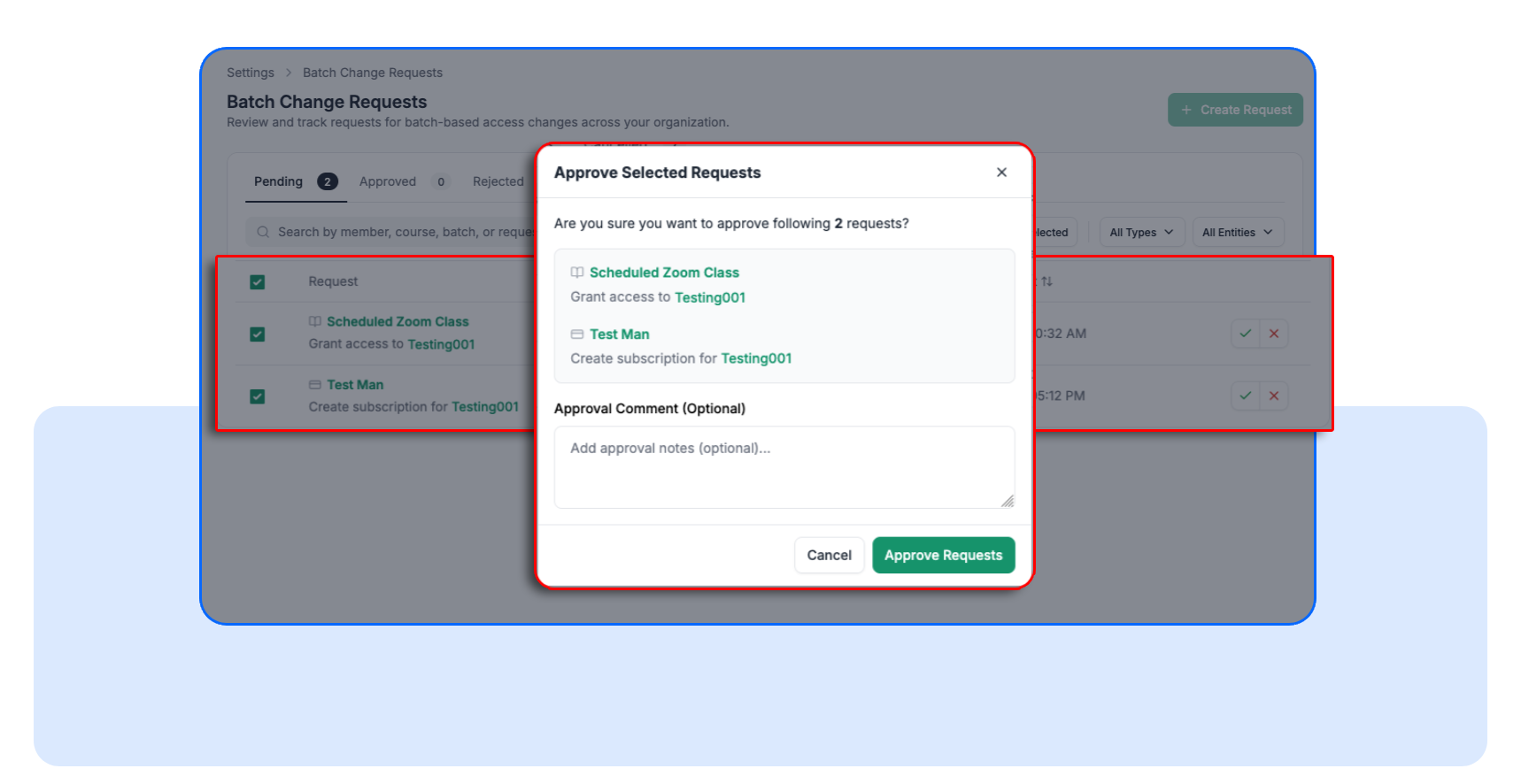
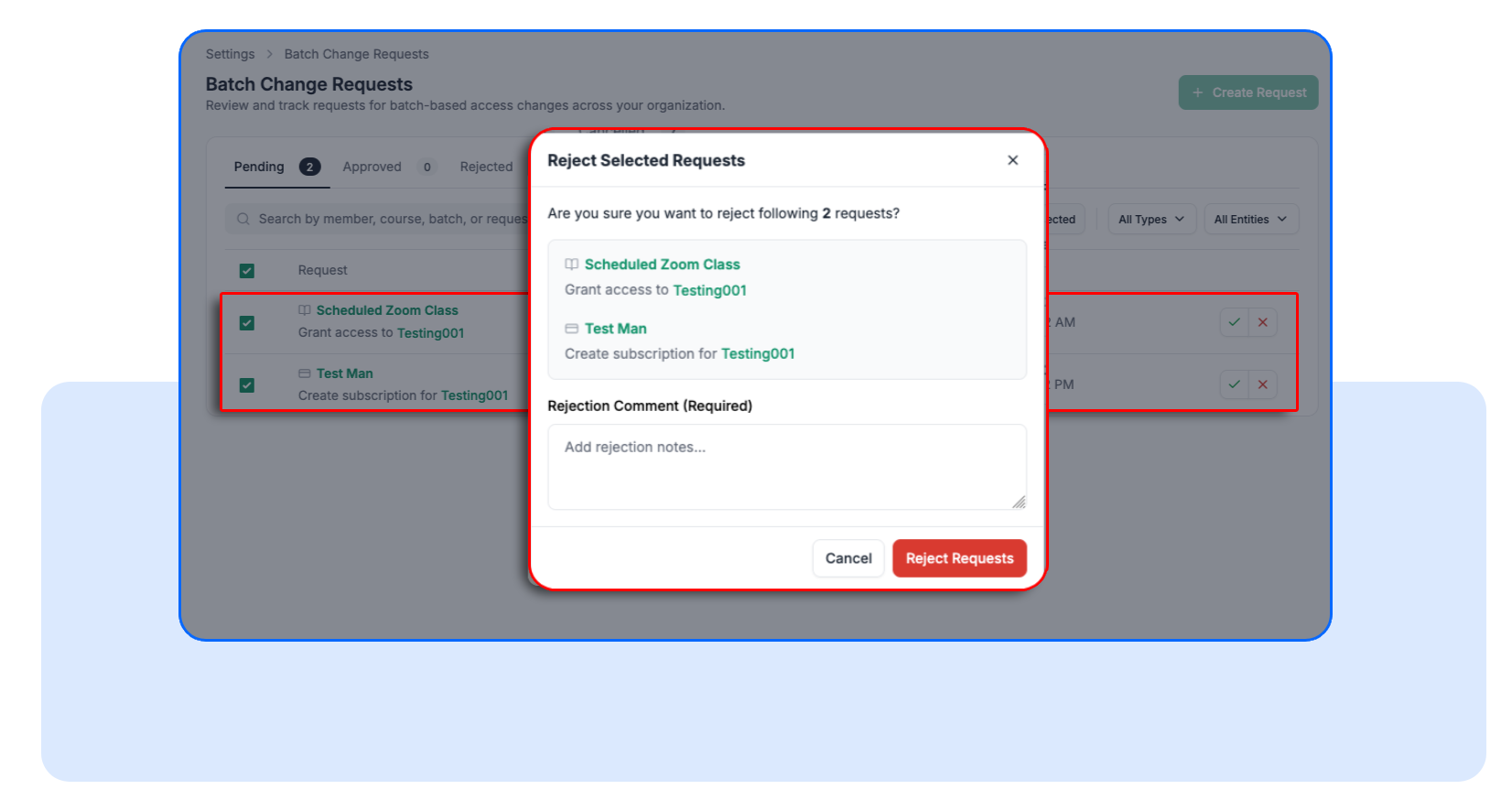
5. Handle requests in bulk
Need to process several requests?
Checkers can select multiple pending requests and Bulk Approve or Bulk Reject them. Bulk rejection requires a single rejection note.
6. Track the history.
Every request keeps its status:
- Pending: Waiting for review
- Approved: Change applied
- Rejected: No change applied
- Cancelled: Withdrawn by the maker
All requests remain in the system for audit and accountability.
And if a Super Admin needs to make an immediate change, they can bypass the approval workflow and edit access directly.
Bulk Batch Changes Without Losing Control
Bulk updates can save hours, but they can also magnify a mistake.
With approval enabled, makers can't use a bulk upload to bypass the review process.
Instead, Testpress creates one pending request per affected student.
For example, a bulk update affecting 100 students can produce up to 100 individual requests, each with its own proposed change and approval status.
The system also reports students who already have a pending request, so those cases don't silently create duplicate requests.
Checkers can then bulk approve or reject pending requests.
For bulk rejection, a rejection note is required. Bulk approval can include an optional approval note.
The result is faster processing without giving up review.
A Clear Record of Every Access Change
Once requests start moving through the workflow, the request history becomes the management record for those changes.
Each request can retain details such as:
- Requester
- Approver or rejector
- Request type
- Target student, course, content item, or subscription
- Requested batch changes
- Request note
- Approval or rejection note
- Request and decision timestamps
- Final status
Approved, rejected, and cancelled requests remain available in history.
That means when someone asks, "Why does this student have this access?", you have a much clearer answer.
FAQs
What happens to automated access changes?
Automated trusted flows continue without approval. ERP/API-based access, order completion, offers, scheduled tasks, and automated subscription expiry or removal are not blocked by the workflow.
Can a superadmin still change access directly?
Yes. The institute superadmin has a direct-edit bypass and can make governed manual changes immediately without creating an approval request.
Can a maker edit a request after submitting it?
No. Pending requests cannot be edited. If a maker submits something incorrectly, they can cancel their own pending request and submit a new one.
Take Control of Manual Access Changes
The goal isn't to add friction to legitimate work.
It's to make sure an important access change has the right review behind it.
Enable Batch Change Approval Workflow in your Testpress institute, assign your makers and checkers, and start reviewing manual access changes before they take effect.